The Approvals page is where you decide what your sensor should do about activity it caught. When a rule says “ask the user before this runs,” the system call pauses on the host and a card appears here, live, while a person on the host is waiting for your answer. This page is the human-in-the-loop part of the platform.
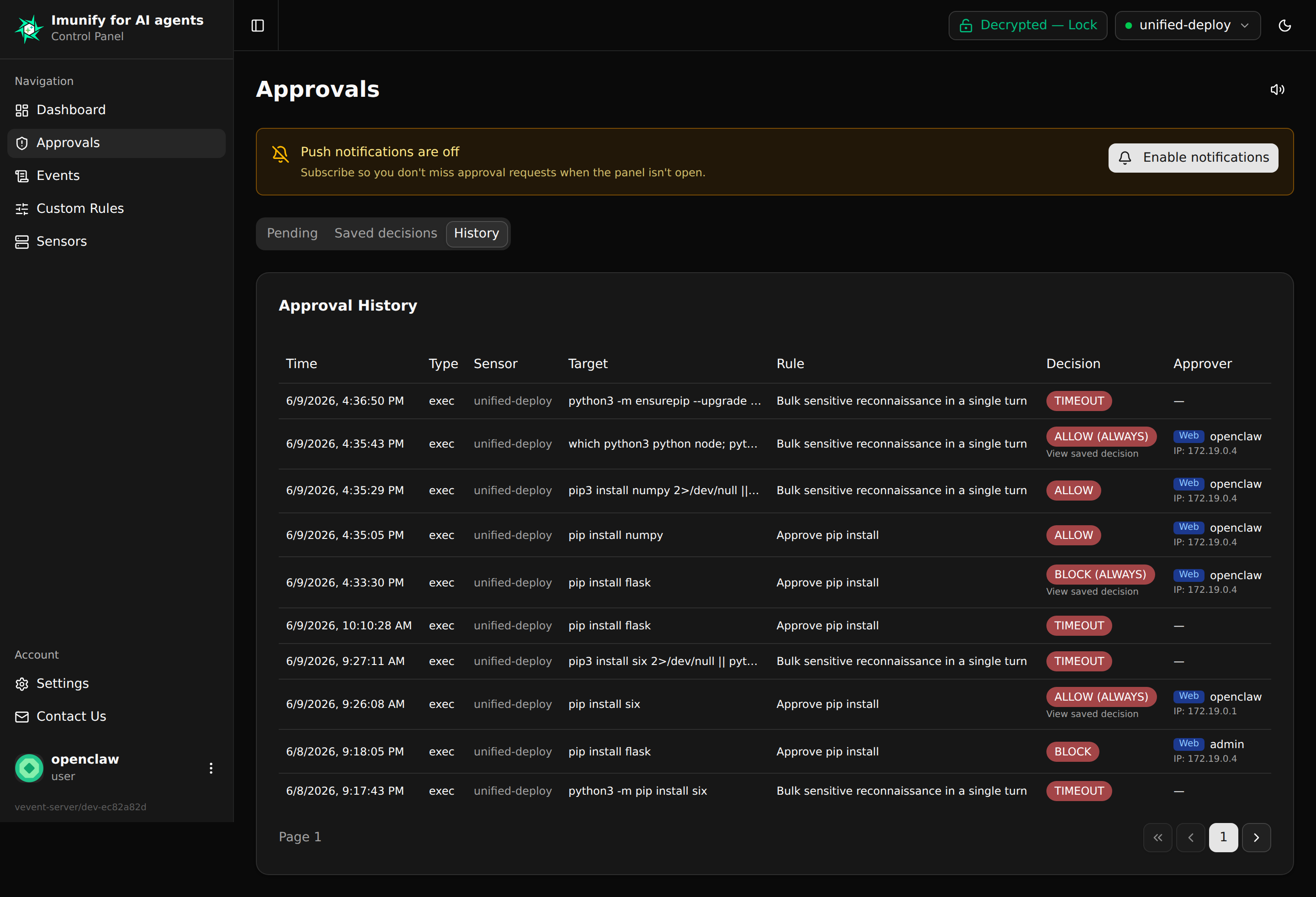
Pending and History tabs#
The page has two tabs at the top.
- Pending is the default view. It shows every approval that is currently waiting for a decision. Cards stream in live as new approvals arrive and disappear as you (or someone else on your team) resolve them.
- History shows every past approval — resolved or timed out — with pagination (40 rows per page). Columns are time, system call, path or IP, the rule that matched (its human-readable name with the rule ID on hover), the decision, and who approved it. When you have no history yet, you see “No approval history yet.”
Live updates and the disconnect banner#
The Pending tab updates in real time. New cards appear as approvals are raised on your hosts and disappear as soon as anyone resolves them — from this tab, from Telegram, or from Discord — without you having to refresh.
If the live connection between your browser and the Panel drops (a network blip, a server restart, a closed laptop lid), the page shows an amber banner that says Live updates disconnected — showing cached data. The numbers and cards you see are still real, but they are the last snapshot we had. The Panel reconnects on its own and the banner clears as soon as it does. If the disconnection turns out to be your sign-in expiring, the Panel sends you back to the sign-in page instead of looping on a dead connection.
What an approval card looks like#
When a request arrives, you see a card with the details the sensor captured: what was attempted (the system call), where (the path, the IP and port for network calls, the URL for HTTP egress), which process attempted it, and which rule asked for your decision. If the activity came from inside a container, the container name is shown on the card so you know which workload to ask about.
The card also shows the human-readable rule name (for example, “Block writes to /etc”) rather than the raw rule ID. Hover over the name to see the ID itself, which is what scripts and the override list use.
Four buttons let you decide:
- Allow Once — let this specific request through. The next equivalent request still raises a new approval.
- Allow Always — let this through and create a permanent override so similar requests are auto-allowed for this sensor without bothering you again. You can review and revoke saved overrides later from the Panel.
- Deny Once — block this specific request. Subsequent equivalent requests will still ask you.
- Deny Always — block this and create a permanent override that blocks similar requests for this sensor going forward.
A decision propagates to the host within a few hundred milliseconds, which means the process that was waiting on its system call resumes (or gets killed, depending on the rule) almost immediately. There is no “save” button — clicking one of the four buttons is the action.
What “Deny” actually means#
If you pick Deny Once or Deny Always, the underlying system call returns an error to the process. For execve and similar process-creation calls, the rule may also instruct the sensor to kill the offending process tree. The Panel does not give you a separate kill button — that choice lives in the rule definition itself.
When the Panel asks you to unlock#
The first time you open Approvals (or Events) after signing in, the Panel may prompt you for your password to unlock your private content key. This is normal — event and approval details are stored encrypted in the database, and the Panel needs your unwrapped key in memory to decrypt the path, reason, and arguments on the card. Unlock is per sign-in session: once you have unlocked, you stay unlocked until your refresh session expires or you sign out.
A few details that come up often:
- “Unreadable after key reset” — the row was encrypted with a private key that no longer exists, because a password reset destroyed the old key generation. The row stays in the audit trail but you cannot read its content. See Encryption — User view.
- “Redacted” — an administrator looking at your data sees event and approval rows in this form. Operational fields (sensor, timestamp, decision, container name) are still visible to the admin, but your workload content (paths, arguments, reasons) is not.
requires_unlockin the API — your sign-in session has not unlocked yet. The Panel handles this for you by opening the unlock dialog automatically.requires_jwtin the API — you tried to read encrypted content with a long-lived API token (sk-user-...). Long-lived API tokens cannot unlock encrypted content. Sign in with your password instead.
The sidebar counter#
The Approvals entry in the left sidebar shows a small counter next to it — for example, Approvals (3) — which is the number of pending approvals across all your sensors. It updates live the same way the Pending tab does, decrementing the moment any one of your team resolves a card from Telegram, Discord, or the Panel itself.
No-one home#
What if no one is watching when an approval arrives? Nothing happens silently — the approval stays in the Pending state until either:
- someone opens the Panel (or Telegram, or Discord) and resolves it, or
- the rule’s timeout expires (120 seconds by default).
When a timeout fires, the approval moves to History with the decision the rule specified for timeouts (most rules default to block). The original request on the host has already been waiting that whole time, so a long timeout means a long pause for whoever is using that host — keep that in mind when authoring rules.
Browser push notifications#
If you keep the Approvals tab in the background, or you want to be alerted on your phone, you can enable Web Push notifications. Click the bell icon at the top of the Approvals page and your browser will ask for permission. Once you grant it, your computer (or phone home-screen, on iOS) gets a system notification each time a new approval arrives. Clicking the notification takes you straight to Approvals.
For approvals delivered to Telegram or Discord instead, see Notifications.